Installation & Update & Uninstall
Note
Check out our video tutorial on How to Install Carbonfly
How to install?
Step 1: Install WSL
In Windows 10 or 11, install WSL 2 with Ubuntu-20.04 (should also work with Ubuntu-22.04, not tested) in a terminal window (e.g. PowerShell), also see WSL Documentation - How to install Linux on Windows with WSL:
wsl --install -d Ubuntu-20.04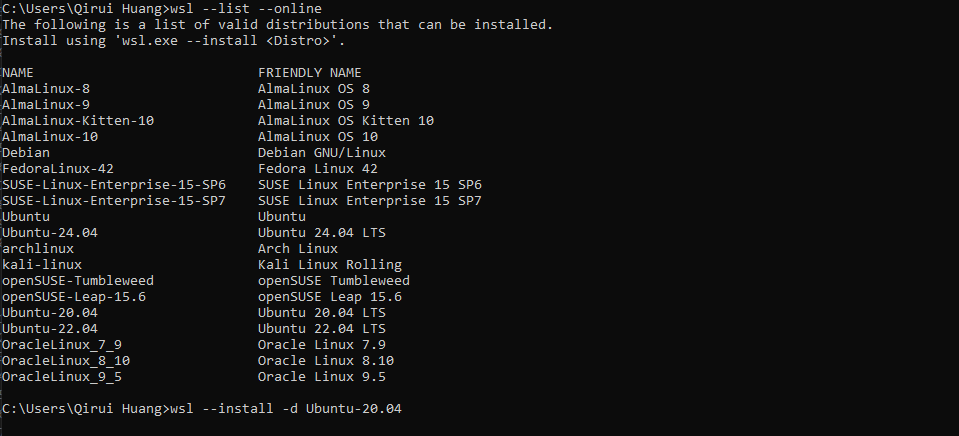
Open
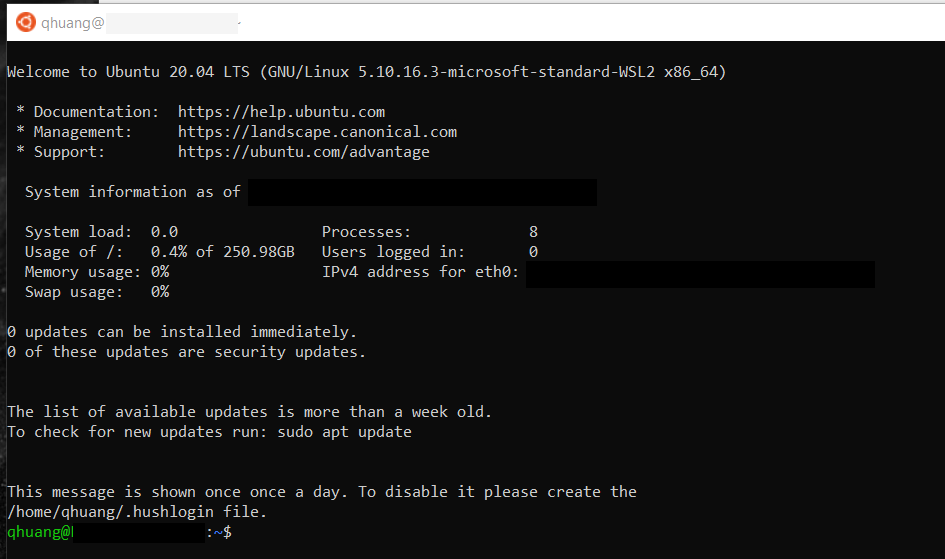
Ubuntu 20.04 LTS, you will see the following console. Please set up your WSL, also see Set up a WSL development environment
Once you have finished setting up, you should see the following welcome message:
Step 2: Install OpenFOAM v10
Install OpenFOAM v10 in WSL - Ubuntu 20.04 LTS (should be able to find it in the Windows menu, with an orange icon), also see Download v10 | Ubuntu:
sudo sh -c "wget -O - https://dl.openfoam.org/gpg.key > /etc/apt/trusted.gpg.d/openfoam.asc"sudo add-apt-repository http://dl.openfoam.org/ubuntusudo apt-get updatesudo apt-get -y install openfoam10
Note
Tip: Ctrl+V doesn’t work in Ubuntu, use right-click to paste
As described in OpenFOAM documentation, complete the following:
Find the
.bashrcfile in the user’s home directory, e.g. using Windows File Explorer:Linux/Ubuntu-20.04/home/user/.bashrcand open the file using any text editor app e.g. Notepad 3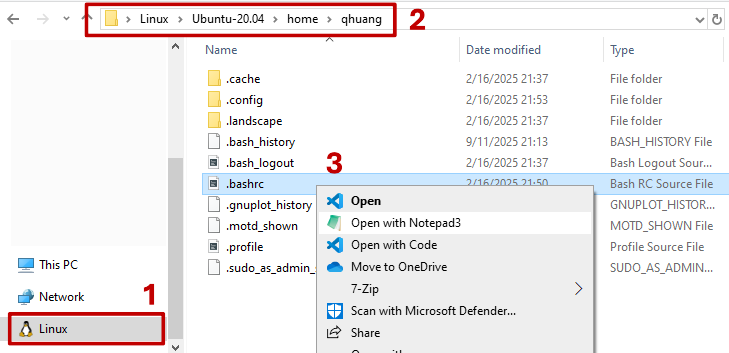
At the bottom of that file, add
source /opt/openfoam10/etc/bashrcand save the file.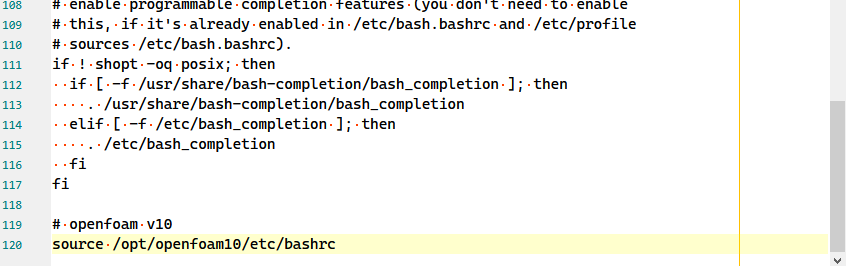
Restart WSL and test with
simpleFoam -helpin a new WSL window: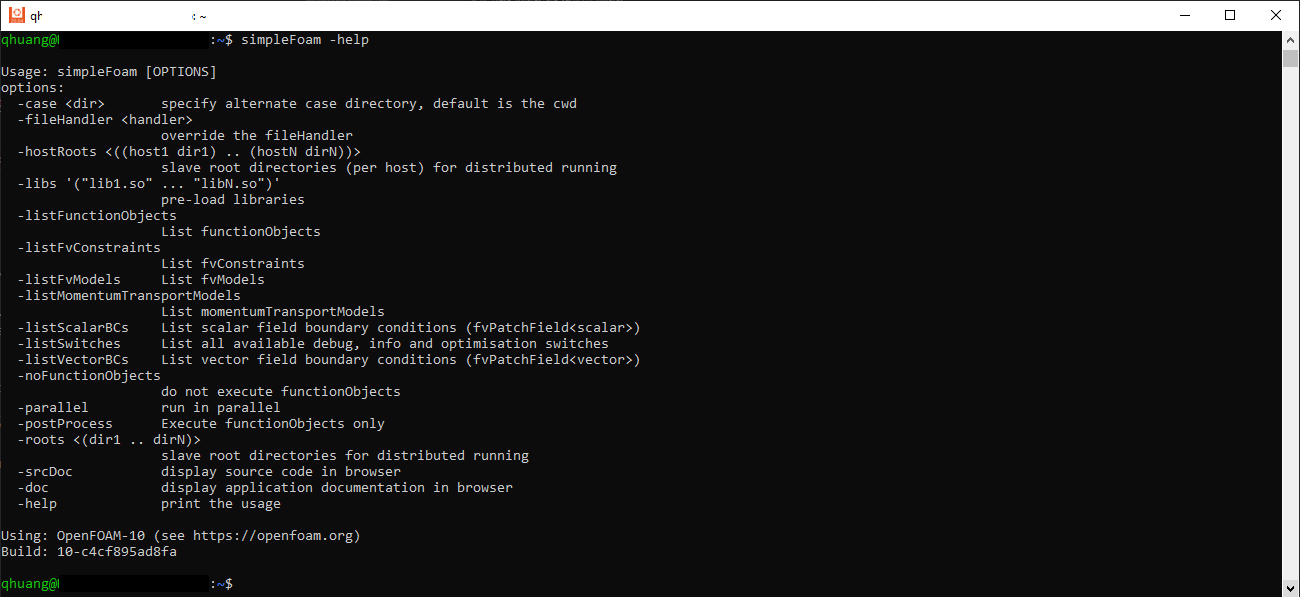
Step 3: Install Carbonfly
Manual installation
Download
.zipfile (or source code) of latest release from ReleasesUnzip the file
Copy the
carbonflyfolder to the Rhino 8 script path:%AppData%\McNeel\Rhinoceros\8.0\scriptsNote
Note: If you have just installed Rhino, the
scriptsfolder may not yet exist. Please manually create a newscriptsfolder at this path%AppData%\McNeel\Rhinoceros\8.0.
Copy the
Carbonflyfolder (undergrasshopper/UserObjects) to the%AppData%\Grasshopper\UserObjectsNote
Note: If you have just installed Rhino, the
Grasshopperfolder may not yet exist. Please run Grasshopper in your Rhino first. The folder will be created after the first run.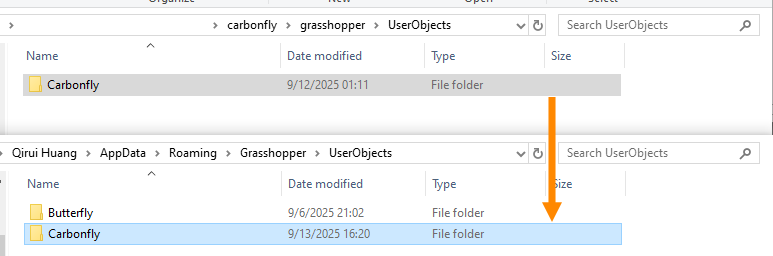
Restart Rhino and Grasshopper. You should now see Carbonfly in the tabs:

To help you get started quickly, we’ve prepared numerous examples. See Examples.
Installer
Coming soon…
Step 4: Install ParaView (optional)
Although ParaView (for post-processing) should be automatically installed in the WSL environment during OpenFOAM v10 installation, it is still recommended to install an additional ParaView instance in the Windows environment. This allows for more convenient viewing of results and post-processing after simulations.
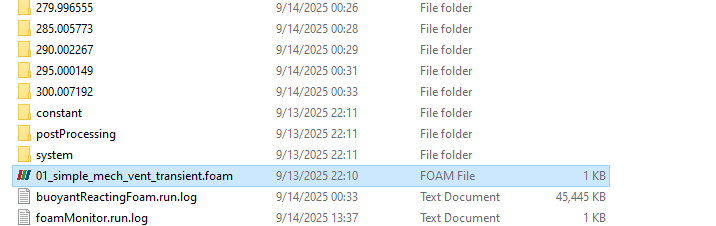
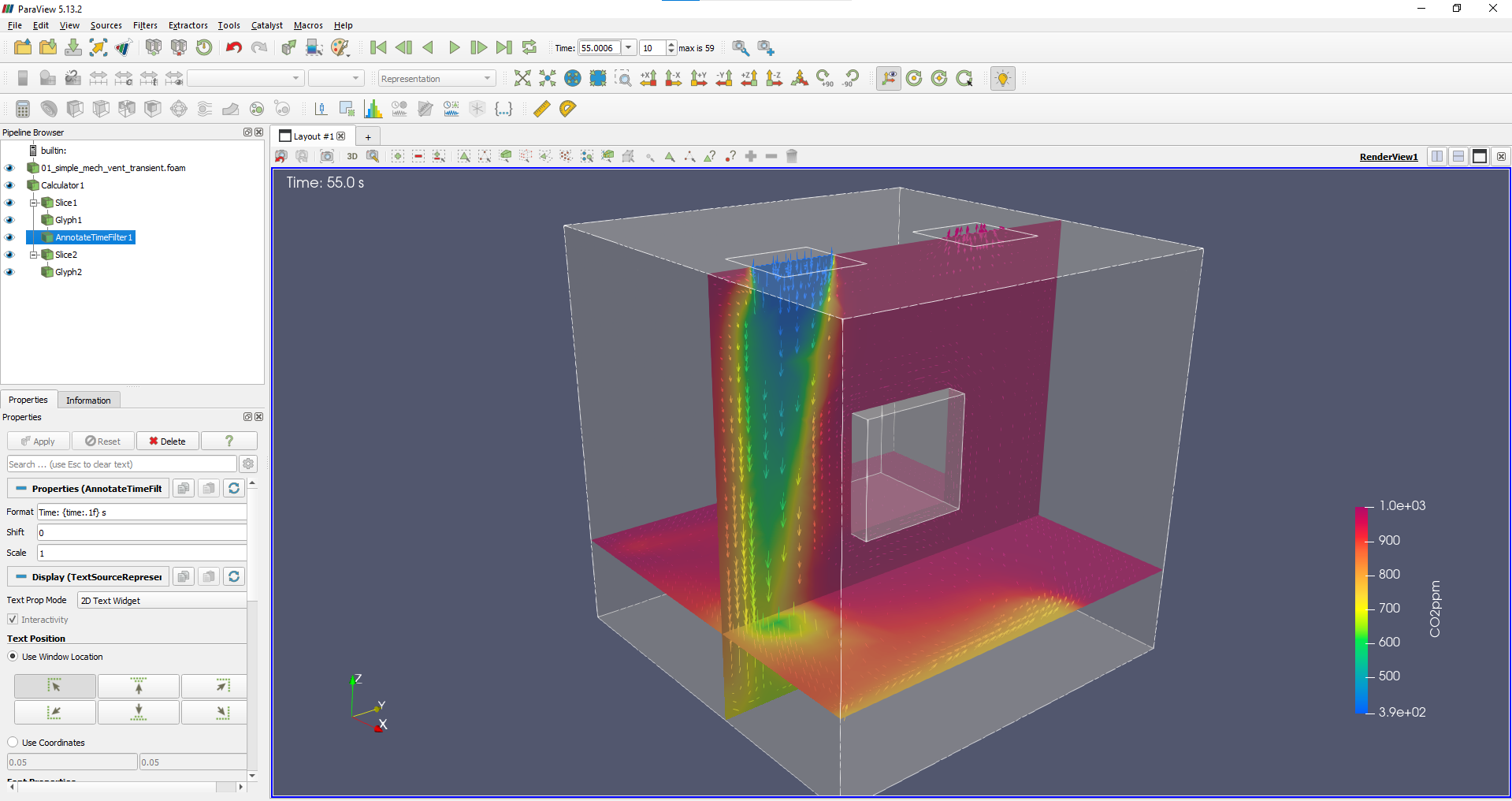
After simulation, simply double-click the automatically generated .foam file in the Carbonfly case folder (see Examples) to open ParaView and view simulation results for post-processing:
How to update Carbonfly?
Close Rhino and Grasshopper.
Download the latest
.zipfrom Releases.Replace the old folders with the new ones: - Delete
%AppData%\McNeel\Rhinoceros\8.0\scripts\carbonflyand copy in the newcarbonflyfolder. - Delete%AppData%\Grasshopper\UserObjects\Carbonflyand copy in the newCarbonflyfolder fromgrasshopper/UserObjects.
How to uninstall Carbonfly?
Close Rhino and Grasshopper.
Delete the
carbonflyfolder from the Rhino 8 script path:%AppData%\McNeel\Rhinoceros\8.0\scripts.Delete the
Carbonflyfolder from the Grasshopper plugin path:%AppData%\Grasshopper\UserObjects.(Optional) Uninstall the Linux distribution you installed like
Ubuntu 20.04 LTSfrom the “Apps & features” or “Installed apps” settings in Windows.
Note
In Windows Terminal, you can use the command wsl -l to check all installed Linux distributions.